
Android Auto vs Apple CarPlay: What's the Difference?
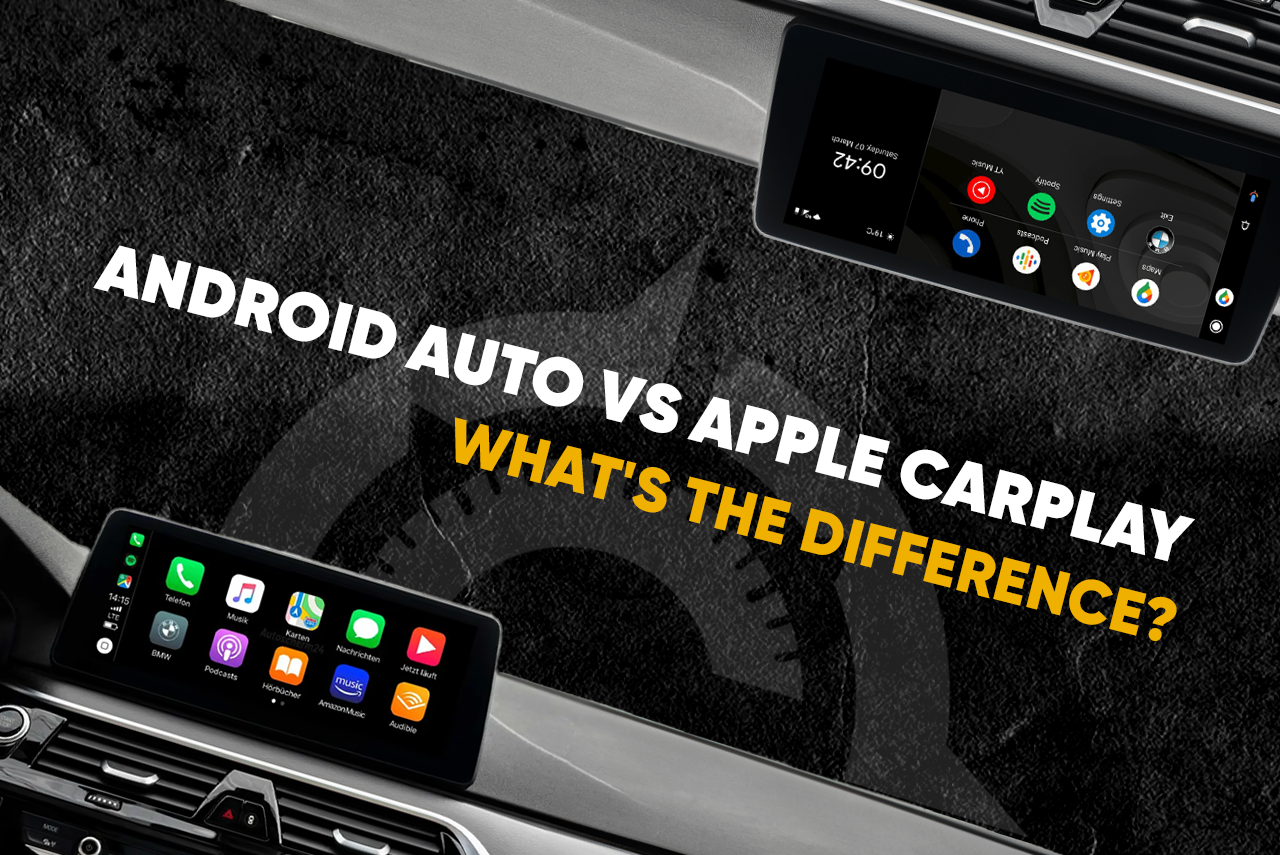
People want to make calls, send messages and use their favorite apps while behind the wheel without taking their eyes off the road. Two popular car systems allow you to do this - Apple CarPlay and Android Auto. Experts from Columbus and J.D. Power will take a closer look at their features.
There is a lot to debate when it comes to the systems that allow you to connect your phone to a multimedia-adapted car – or simply put, to the in-vehicle infotainment (IVI) system – and which one is better. But each one definitely makes the driver’s life much easier.
Drivers quickly saw the benefits of Apple CarPlay or Android Auto, and some won’t even consider a car without one anymore.
Let's take a closer look at the features and capabilities of these popular systems.
Apple CarPlay: Clear and Simple
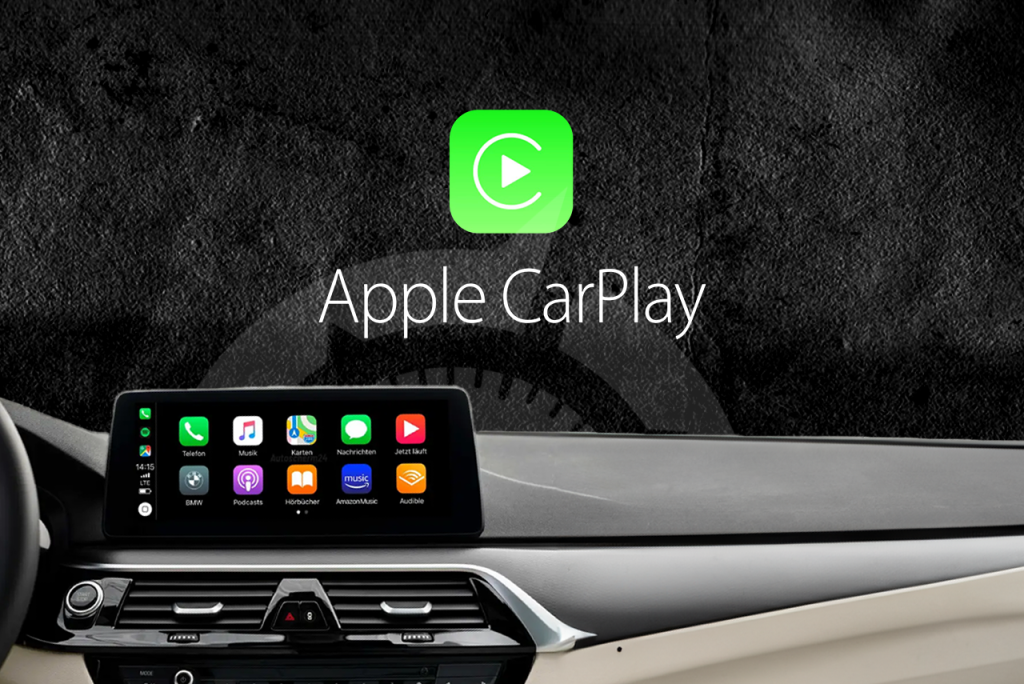
Apple CarPlay is designed for safe and intuitive use of Apple’s iPhone in the car. The system allows you to get directions, make calls, send and receive messages, and enjoy your favorite music using the built-in display on the car's dashboard as well as the speakers of its audio system.
How does it work?
Depending on the type of your in-car infotainment, to start using CarPlay, you need to do one of the following:
• Connect your iPhone to the USB port on your car's dashboard or center console.
• Connect your iPhone to the IRS via Bluetooth and launch Apple CarPlay by selecting the corresponding app on its screen.
In both cases, the iPhone will automatically display a simplified iOS interface on the car's built-in touch display.
CarPlay's interface has a laconic design with large the icons and easy to read font. All apps are displayed the same way as in iOS, so navigation should not be a problem.
CarPlay has two main screens that you can easily switch between: Home and Dashboard.
CarPlay Home shows all applications available in CarPlay. CarPlay Dashboard provides quick access to the most important and popular items like navigation routes, music playback and messages from the virtual voice assistant Siri.
What can you do with CarPlay?
The driver can select any of the eight main applications on the home screen to utilize one of the iPhone’s functions:
• Phone App – allows you to make calls from your smartphone using the touch screen controls and the car's speakerphone.
• Apple Music App - provides Apple Music subscribers with direct access to your library of songs and music albums, as well as Apple Music Radio.
• Apple Maps App has the same navigation functions as it does on the iPhone and then some – like telling the driver the estimated time of arrival to the destination object (linked to the contact list).
Apple Maps can also send directions to the Apple Watch, although this feature is not particularly popular.
• Messages App allows the user to see who sent you messages, but does not display their text on the display for security reasons. Siri can voice the message as well as help you reply or close it.
• Now Playing App displays real-time information about the track being played by the audio system. This could be an audio podcast, audiobook or song.
• Podcast App allows the user to find saved podcasts, view new ones, and listen to tracks in the set order.
• Audio Books App is similar to Podcast App for your phone, with the same playback and rewind controls.
• Car Manufacturer App returns the user to the car’s native operating system and is used to exit Apple CarPlay.

Hey, Siri!
The voice assistant Siri is CarPlay’s most important feature that allows the driver to avoid distractions while driving. Siri speaks in the voice of famous American voice actress Susan Bennett. Or rather, it answers questions about CarPlay features, accepts app control commands, reads information found on the Internet, and sends messages based on your dictations.
Siri works exactly the same in CarPlay as it does on iPhone: to get its help, you just need to say “Hey, Siri”. An alternative activation method is to press and hold the Talk button on the steering wheel.
What’s available in the settings?
Here you can enable additional custom settings. For example, activate the “Do Not Disturb” mode so that all incoming calls and messages are blocked while the car is moving, with the ability to make exceptions for certain contacts.
There are a number of other modes available like Automatic Light, Dark Mode or Always Dark Mode, which will adjust the brightness and intensity of the screen.
There are numerous other settings, from choosing a wallpaper for the CarPlay’s home screen to different text output modes on the CarPlay information panel.
Can I use third party apps?
Yes, you can. For example, you can switch to Google Maps or Waze instead of Apple Maps. Likewise, instead of Apple Music you can pick Spotify, if that’s the app you like.
The only drawback of CarPlay is that the number of third-party apps is limited.
You can enable/disable applications in your iPhone’s settings.
Which manufacturers use Apple CarPlay?
At the moment, almost all major American automakers provide support for Apple CarPlay in the in-vehicle infotainment. Although, the IVI itself is not always provided in basic car trims.
Interestingly, General Motors (GM) recently announced that it will be phasing out Apple CarPlay – as well as its Android Auto counterpart which we’ll look at below – in its electric vehicles.
Instead, the company will offer an IVI developed jointly with Google. GM says that with the new system, drivers will be less likely to pick up their phones thanks to the new built-in system, leading to improved road safety.
CarPlay technology will be eliminated from Buick, Cadillac, Chevrolet and GMC electric vehicles. GM's internal combustion engine vehicles will continue to support CarPlay until they are completely replaced by electric models in 2035.
Android Auto: for a wider audience
Android Auto is Google's equivalent of Apple CarPlay, designed to work with smartphones running the Android operating system.
Android Auto has a much larger number of different applications available than CarPlay, and you can use voice commands from Google Assistant, although it is not as advanced and multifunctional as Siri.
How does it work?
Everything is similar to CarPlay – first you need to connect your phone to the car’s IVI. This can be done using:
-
a standard USB charging cable from your smartphone. As soon as you accept the invitation to connect that will appear on your phone screen, the Android interface will automatically broadcast to the car's touch display.
-
Bluetooth. On subsequent use after the initial set up, the smartphone will automatically connect to the vehicle’s IVI.
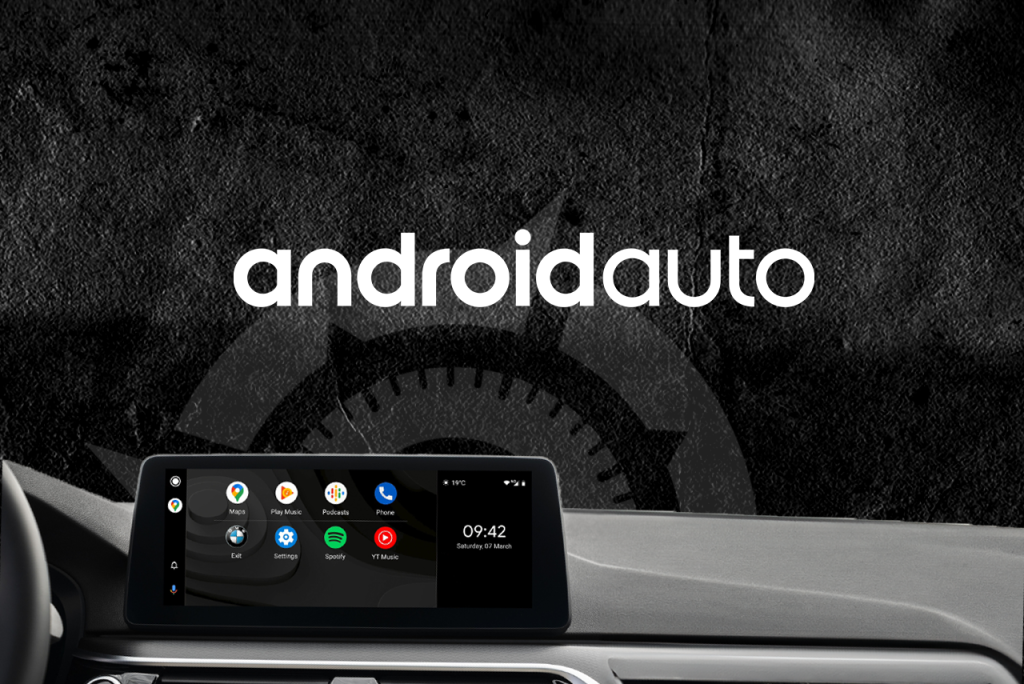
Android Auto is intelligently designed allowing for smooth navigation around the system. The interface looks like a simplified version of the phone screen with all the applications from its desktop being available.
This is one of the main differences between Android Auto and Apple CarPlay – in the latter, Apple and third-party apps are on different screens. Android Auto combines the apps into a single scrollable menu with widgets arranged in alphabetical order.
The second important difference is that you can add numerous apps of your choice to your Android Auto.
Hey, Google!
Google Assistant vocal command system is activated by the saying “Hey, Google”, followed by a command. For example: “Hey Google, skip this song.” “Hey Google, get me directions to this address” or “Hey Google, call /Anna at work.”
It can also be activated by pressing the “Talk” button on the steering wheel.
What’s available in the settings?
The Settings section allows you to adjust various features of your phone, both in terms of functionality and appearance of the Android Auto interface. These include screen backlight modes depending on the time of day (Mode), and its background pictures, as well as customizing the taskbar by enabling/disabling widgets for the select applications (Customize Taskbar), managing automatic system notifications (Control Auto Notifications), etc.
You can, for example, enable Auto Resume Media that will play back from the same spot after system is turned off and back on.
Or you can create Google Assistant Shortcuts on the screen. When you click them, they will execute a previously specified command. It is very useful if, for instance, you have a child sleeping in the car and you don’t want to wake them up by your voice commands.
Can I use third party apps?
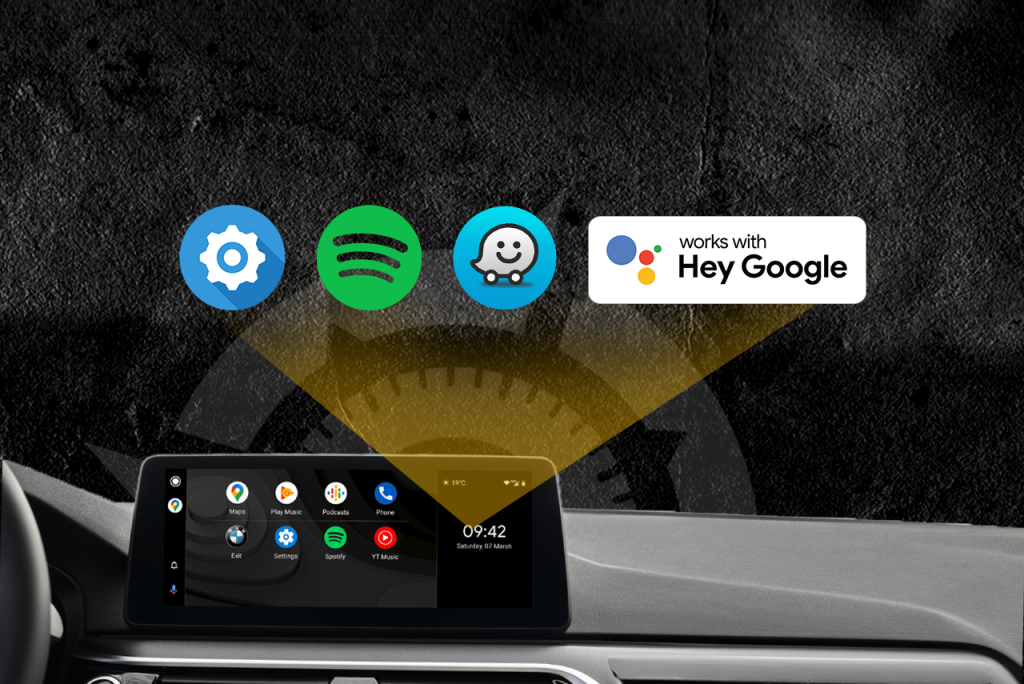
As many as you like! A large number of third-party applications are compatible with Android Auto – Waze for navigation, Spotify for music, WhatsApp for communication, and so on. In addition, you can choose which applications should be displayed in the Android Auto menu and which should not in your phone’s settings.
Which manufacturers use Android Auto?
The vast majority of major automakers use Android Auto in their models.
But, as in the case with Apple CarPlay, there is the issue of IVS not being offered in all trim levels. For example, some BMWs, until recent years, did not have Android Auto – the owners of these cars were forced to stick with CarPlay.
Sources: Jdpower.com, Apple.com


Help in the service